A live MIDI backing tracks player that lives on your iPad

Play MIDI files to your sound modules with tight timing, run your setlists, and show the lyrics, chords and sections to the whole band, on the iPad and on any phone or tablet in the room.

Native SwiftUI and CoreMIDI. No cloud, no account. Your files stay where you keep them.

NewAudio stems and .merik files, MIDI controllers, and a link to QSheets
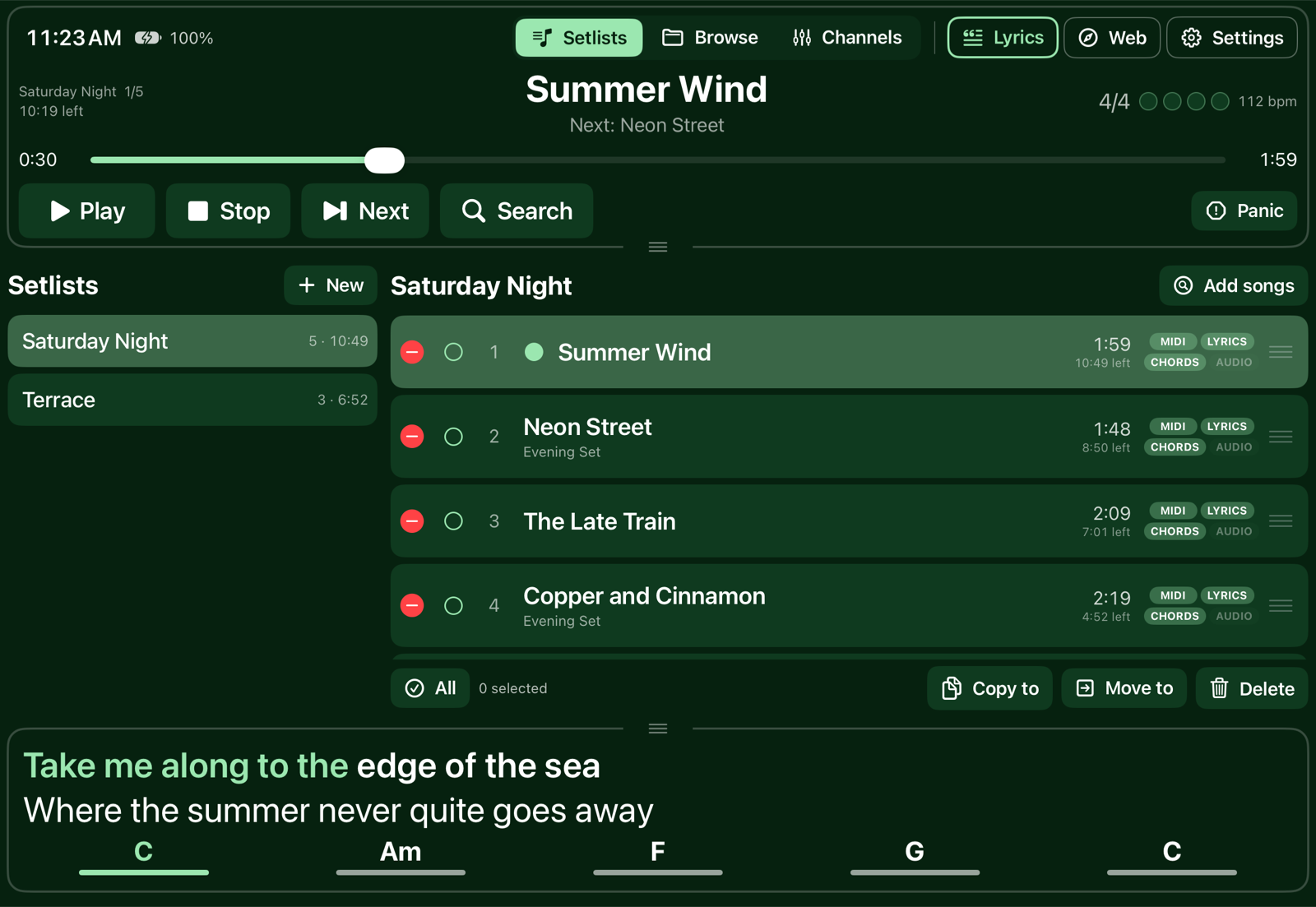
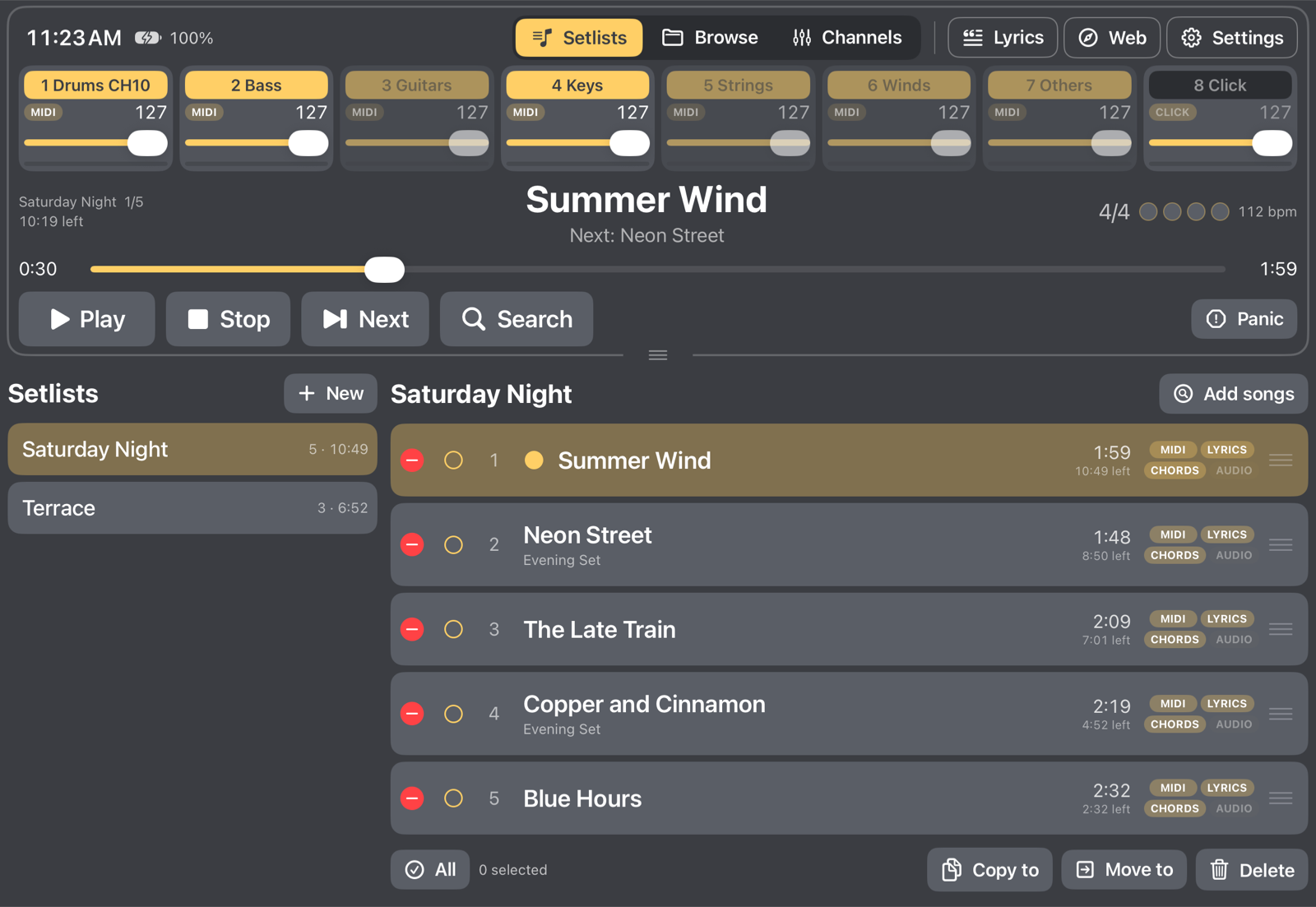
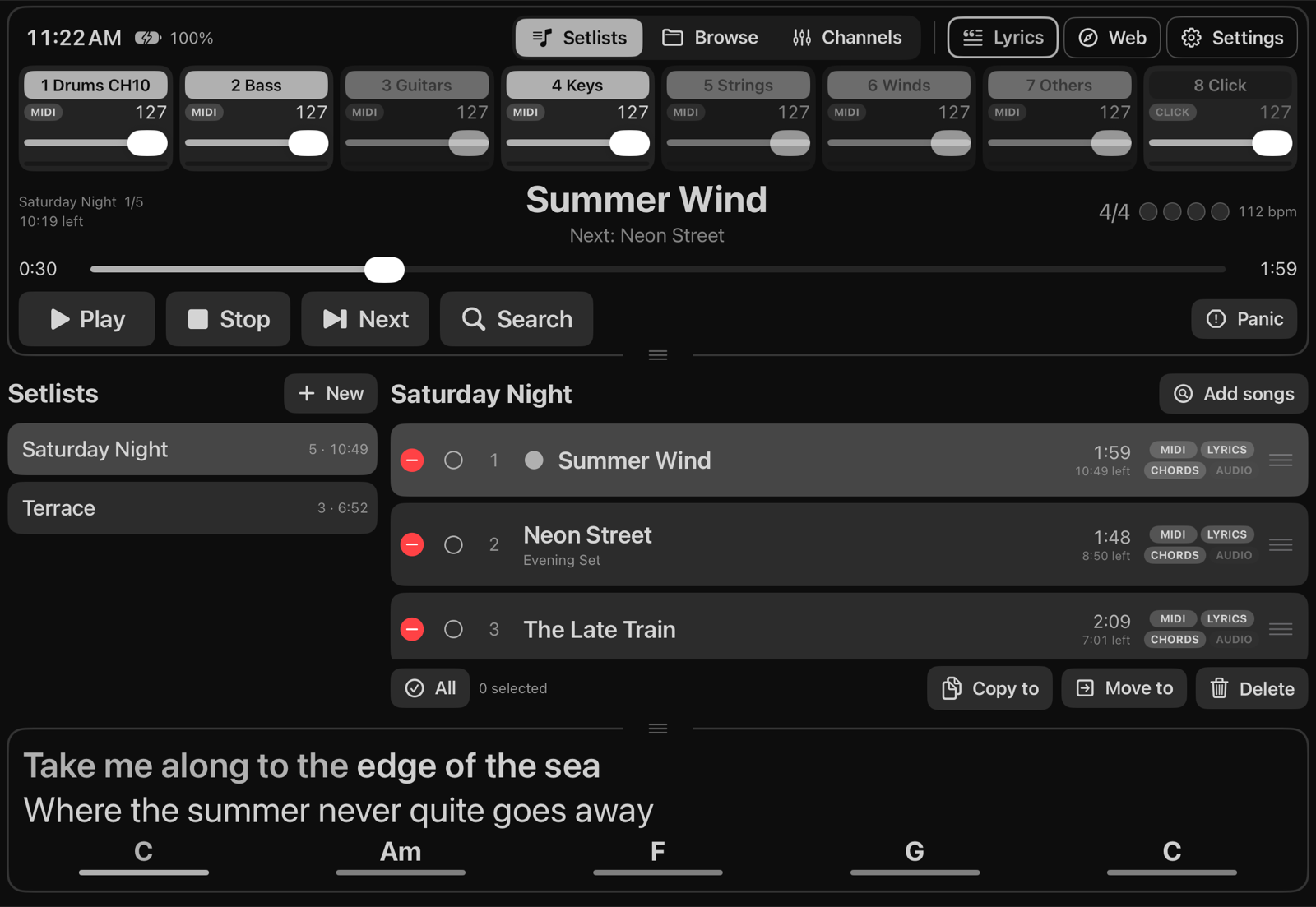
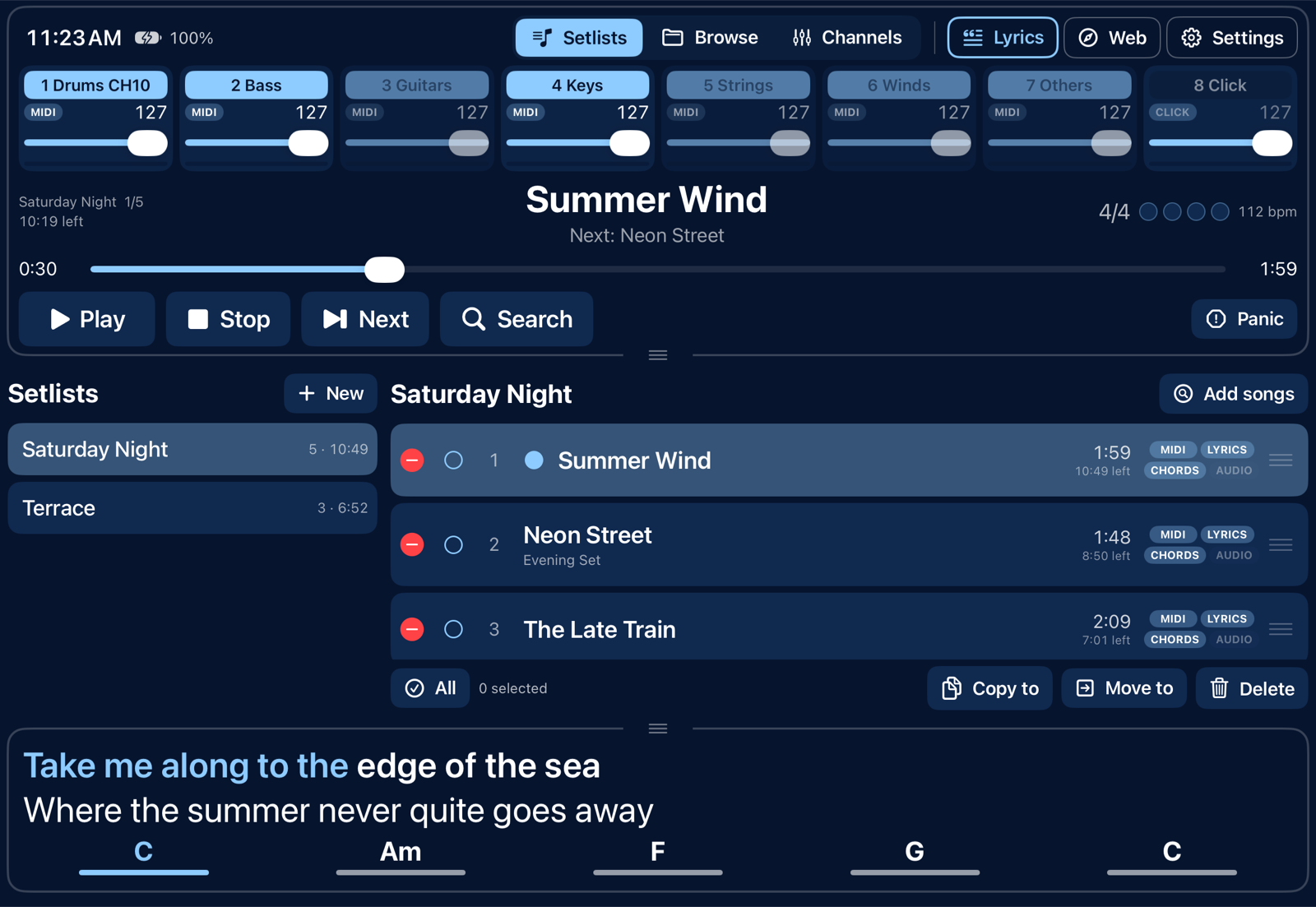
Merik for iOS on an iPad: the player with eight instrument families, a setlist and the lyrics and chords panel
A setlist, the player and the lyrics panel. All songs in these pictures are invented demo songs.
Why Merik for iOS

One iPad. The whole band.

Plenty of apps can play a MIDI file. Merik for iOS is built for the person who runs the backing band at a gig and wants everybody to see the song.

Tight MIDI playback

Plays .mid, .midi and .kar files through CoreMIDI with host timestamps, to any output: USB, Bluetooth, network MIDI or another app on the iPad. A virtual source called "Merik" is there for other apps.

Everybody sees the song

The iPad serves a web page with lyrics, chords and sections. Open it on any phone, tablet or laptop on the same network. Nothing to install on those devices.

Lyrics and chords from the file

Reads lyrics and chords from the places MIDI files hide them: karaoke and Midisoft files, Yamaha XF chord data, markers and text events, with slash chords. They transpose with the music.

A family mixer, not sixteen faders

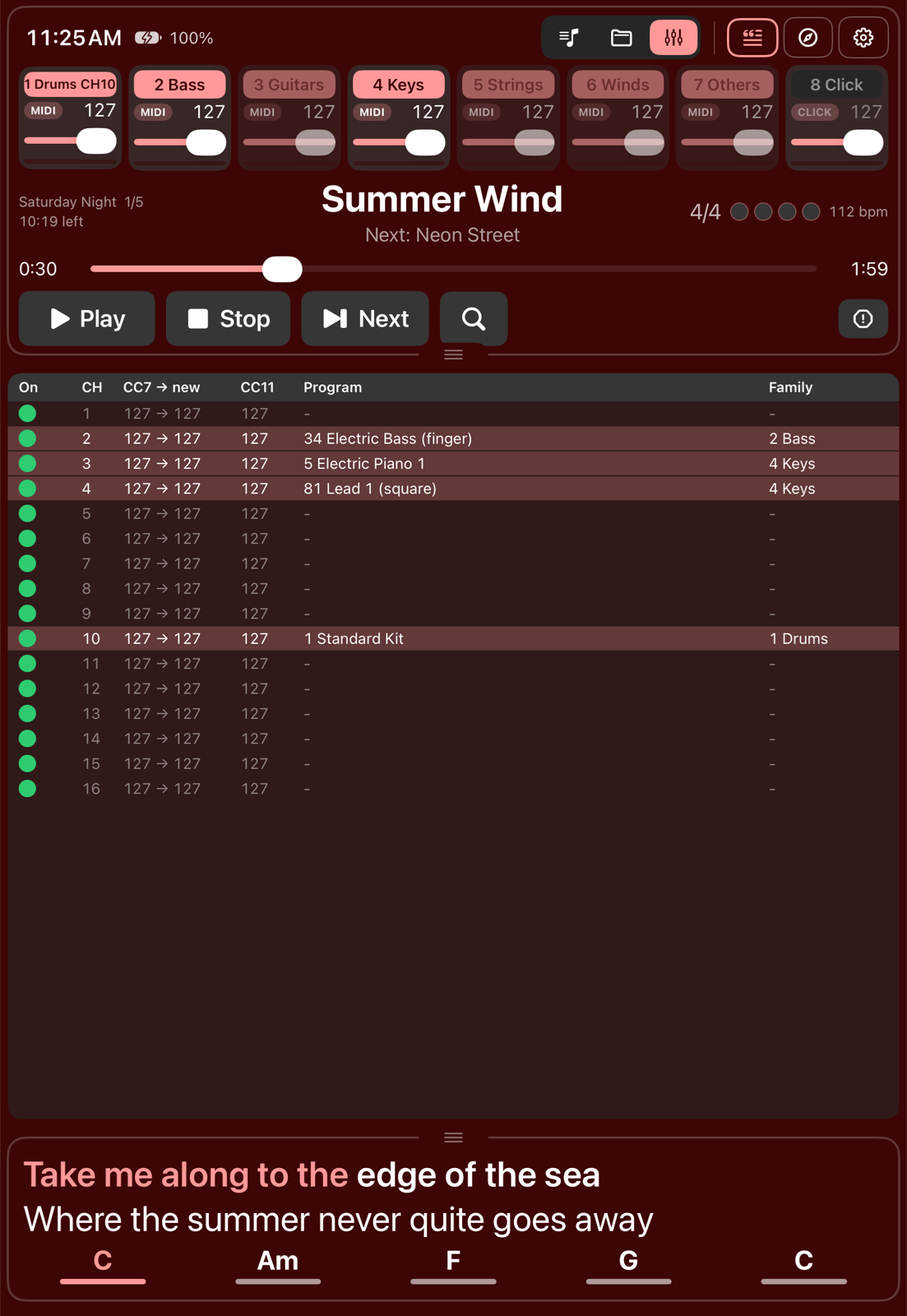
The MIDI channels are grouped into eight families: drums, bass, guitars, keys, strings, winds, others and a click. Balance the band with eight controls and switch a family off for a live player.

Setlists that work on stage

Several setlists, drag to reorder, the length of every song and the time left in the set. Search and jump from the band page without losing your place.

Keeps playing

Playback continues with a locked screen or in another app, and the screen can stay on while you play. Works in every orientation, in Split View and in Slide Over.

New

Audio, a hardware controller and QSheets

What was on the list is in the app now.

New

Audio stems and .merik files

Open the .merik files you made with Merik for macOS or Windows: the MIDI, recorded audio per family, and the lyrics and chords, all in one file. A family with audio plays the recording instead of its MIDI notes, so a song can be all MIDI, all audio or a mix.

The same family faders and switches steer the audio, and audio and MIDI start on one clock, so they stay together after pause and seek. Each family with audio can go to its own pair of outputs on your audio interface, for separate channels on the mixer. In Advanced mode.

New

A hardware MIDI controller

Connect a controller such as the Korg nanoKONTROL2. The faders set the family volumes, the R buttons switch families on and off, and the transport buttons play, stop, go to the next song and send a panic. The LEDs follow along.

Every CC number can be changed, with Learn. What the controller sends never reaches the song's MIDI outputs. In Advanced mode, under Settings, MIDI control.

New

Switch a MIDI channel off: for this song, or for good

Open Channels and tap the dot in the On column. Each tap moves it one step:

  • Green: the channel plays.
  • Orange: off for this song only. The next song starts with the channel on again.
  • Red: off for every song, until you tap it back to green.

The Channels tab shows how many channels are off. Example: a karaoke evening with files that have the melody on channel 1. Tap channel 1 twice, to red, and the melody stays silent all evening.

Works with QSheets

QSheets is the sheet music and setlist app for iPad and iPhone. Pick a song in Merik for iOS and QSheets on the same Wi-Fi opens the matching sheet by itself, with a progress bar that follows the song. No searching or page turning between songs: Merik runs the show, and the chart is already open on every music stand. On by default, under Settings, QSheets.

Get QSheets
On stage

How it fits together

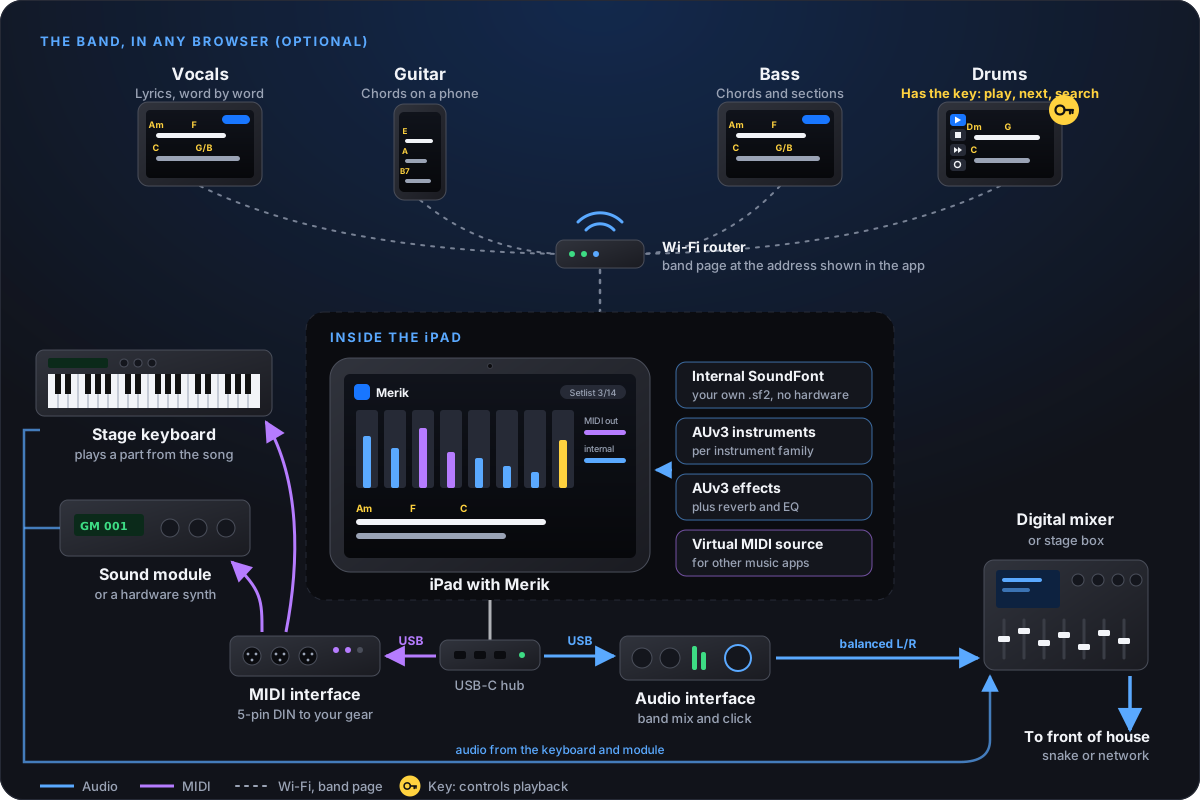
No laptop needed. The iPad is the player and the sound source: it plays the internal SoundFont and your AUv3 instruments and effects, and sends MIDI to the keyboards and modules you already have.

Diagram: an iPad with Merik for iOS plays the internal SoundFont and AUv3 instruments and effects; through a USB-C hub it sends audio to an audio interface and a digital mixer to front of house, and MIDI through a MIDI interface to a stage keyboard and a sound module; band members open the band page over Wi-Fi
One iPad runs the show. Through a USB-C hub, audio goes to the interface and the mixer, and MIDI goes through a MIDI interface to your synths and modules. The band page reaches every phone and tablet on the Wi-Fi; the players with the key can control playback.
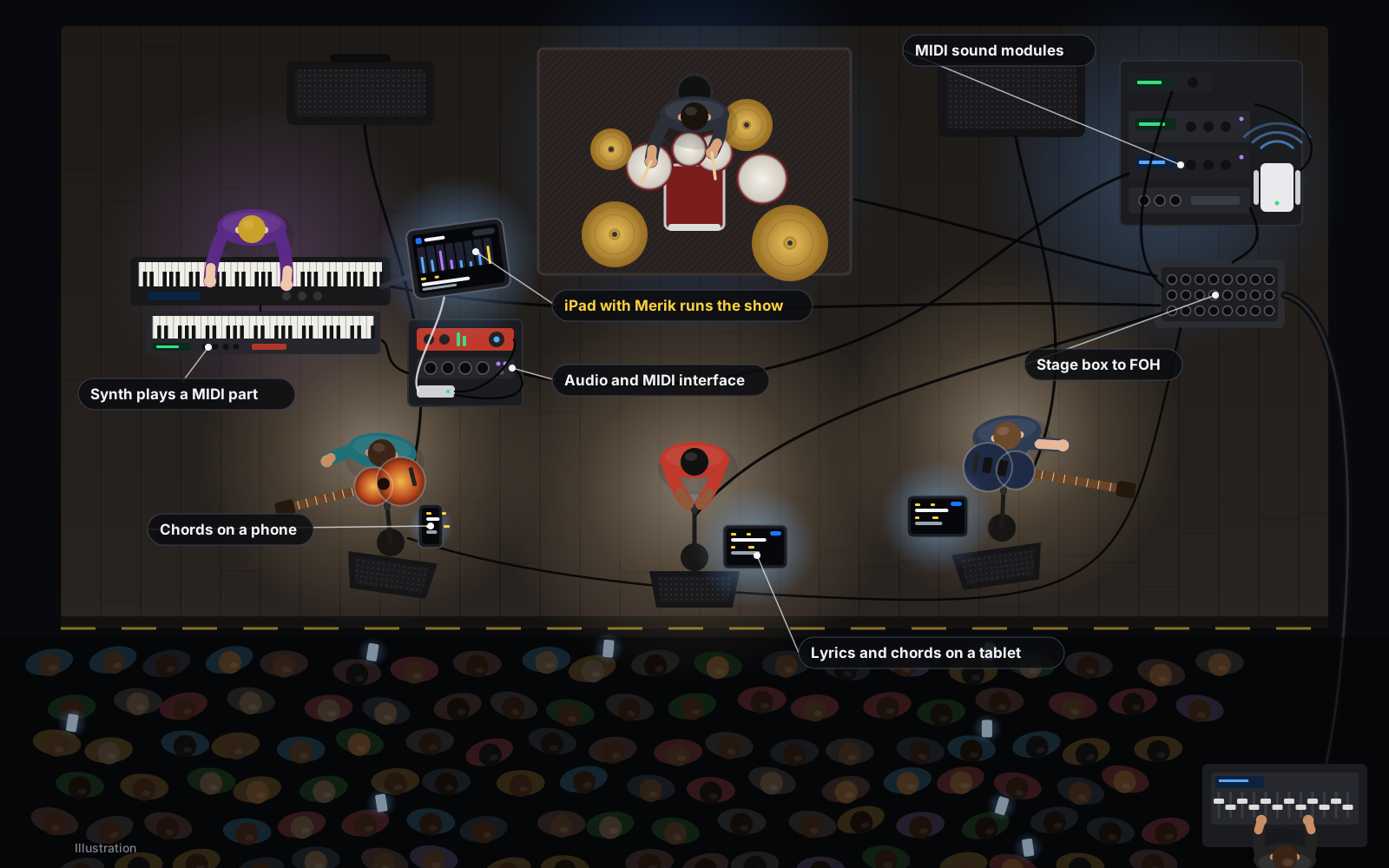
Illustration of a five-piece band on stage seen from above, with the iPad running Merik for iOS on the keyboard stand next to an audio and MIDI interface, sound modules in a rack at the back, and tablets on the mic stands
A typical gig from above: the iPad on the keyboard stand with a small audio and MIDI interface, a synth and rack modules playing MIDI parts, and lyrics and chords on every mic stand.
The screens

More or less on screen, your choice

The screen has three sections: the player at the top, a flexible section in the middle (Setlists, Browse or Channels) and the lyrics and chords at the bottom. Drag the three-line handle under the player, or tap it, to switch between layouts.

Compact layout

Normal, compact or one line

Normal shows the player with its eight families. Compact drops the families. One line keeps only play, stop, next, the title and the time, so the list gets all the room.

  • Narrow windows switch to a mini layout on their own: play, stop, next and the title on one line, the rest in a menu.
  • Tap the handle above the lyrics panel to hide it for more room, or drag it to the height you like. The text scales with it.
  • Full screen hides the iPadOS status bar.
One line layout
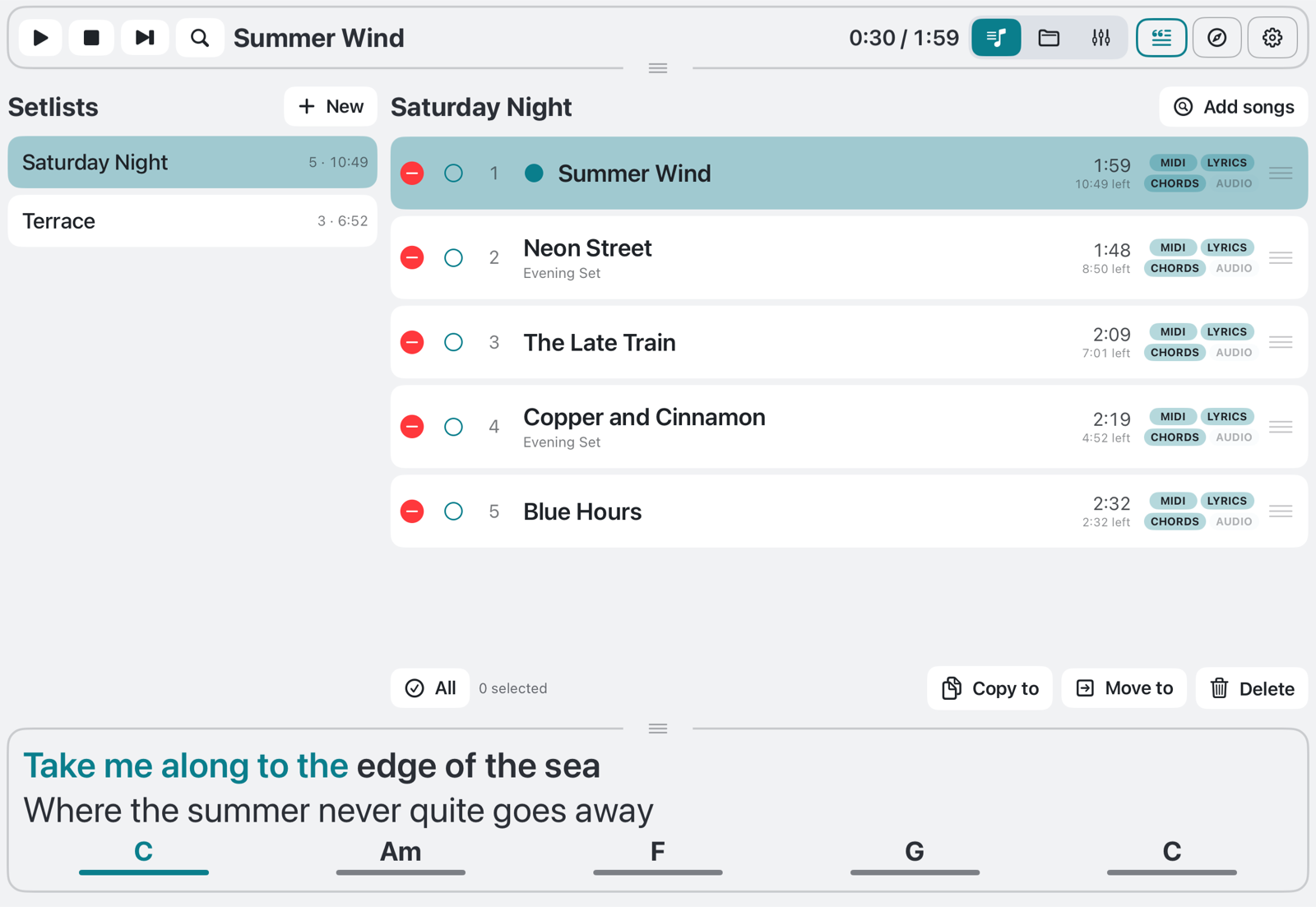
One line layout in the White theme.

Setlists

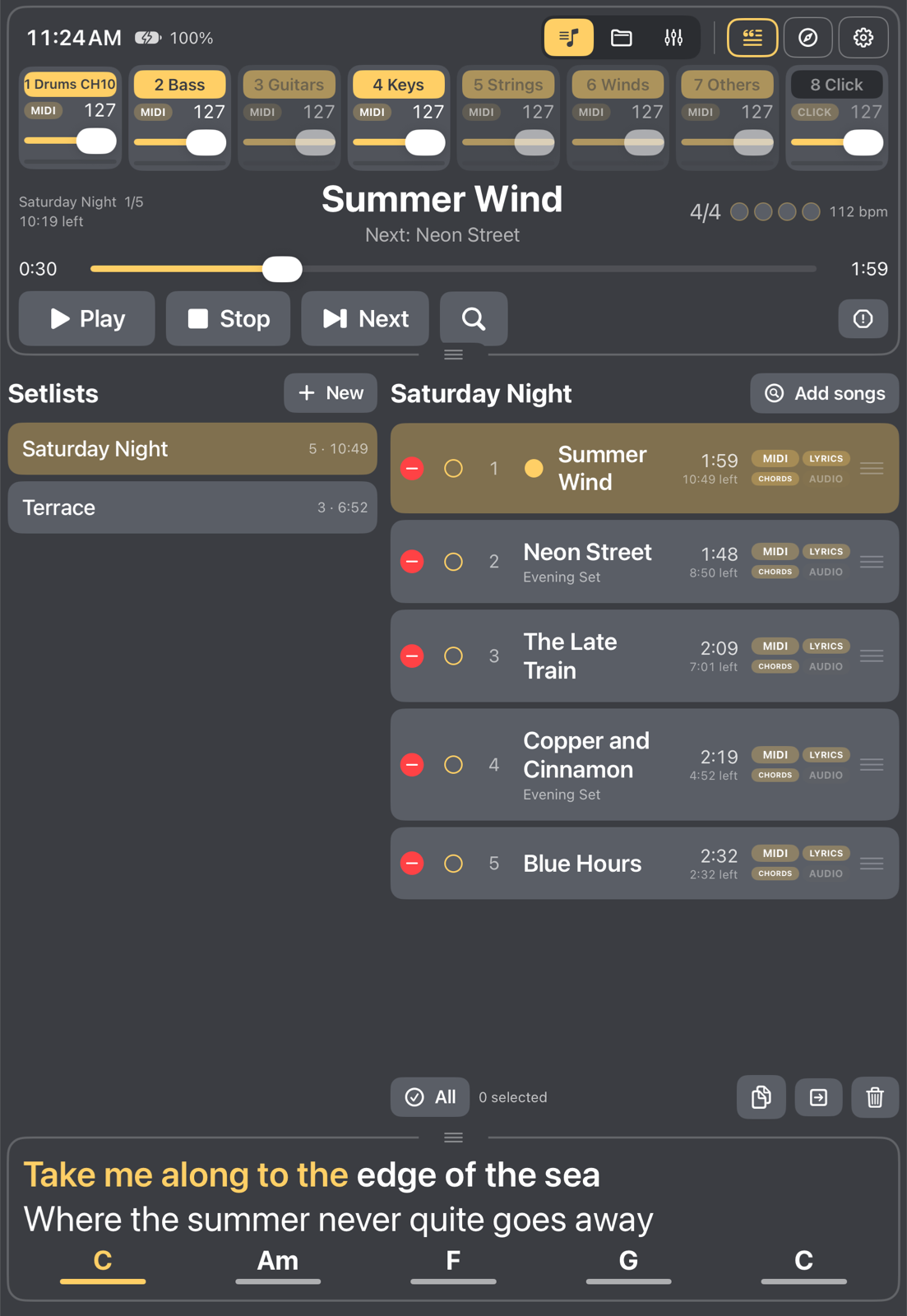
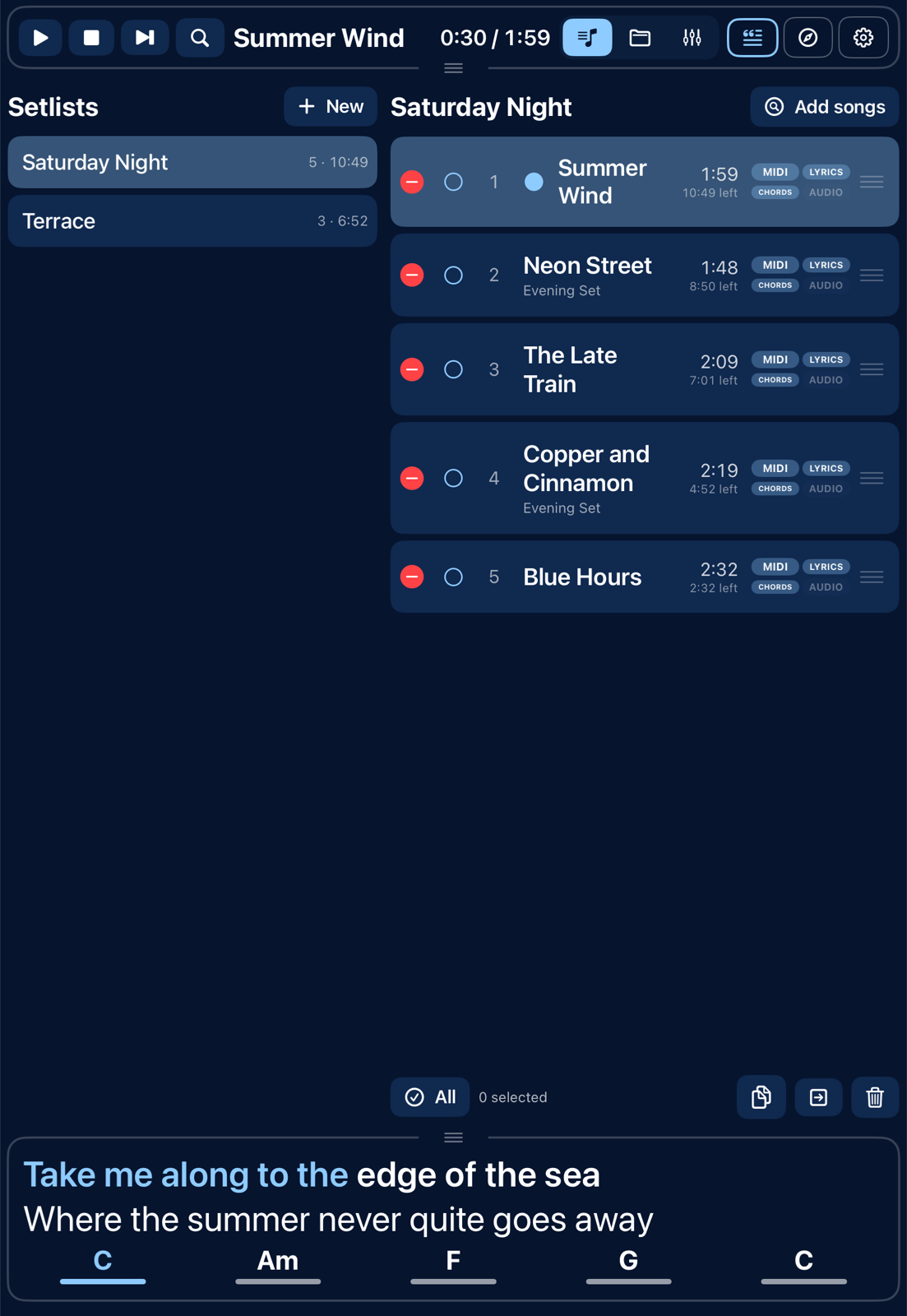
Make as many setlists as you need, rename and duplicate them, and drag songs into the order you play them. Every song shows its length, whether it has lyrics and chords, and the set shows the total and the time left.

  • Add songs from Browse, a whole folder at once, or by typing three letters.
  • Move or copy songs to another setlist, give a song its own title, use the same song twice.
  • Missing files show in red, and a renamed or moved file is found again.
  • Back up all setlists to one file and restore them anywhere.
Browse
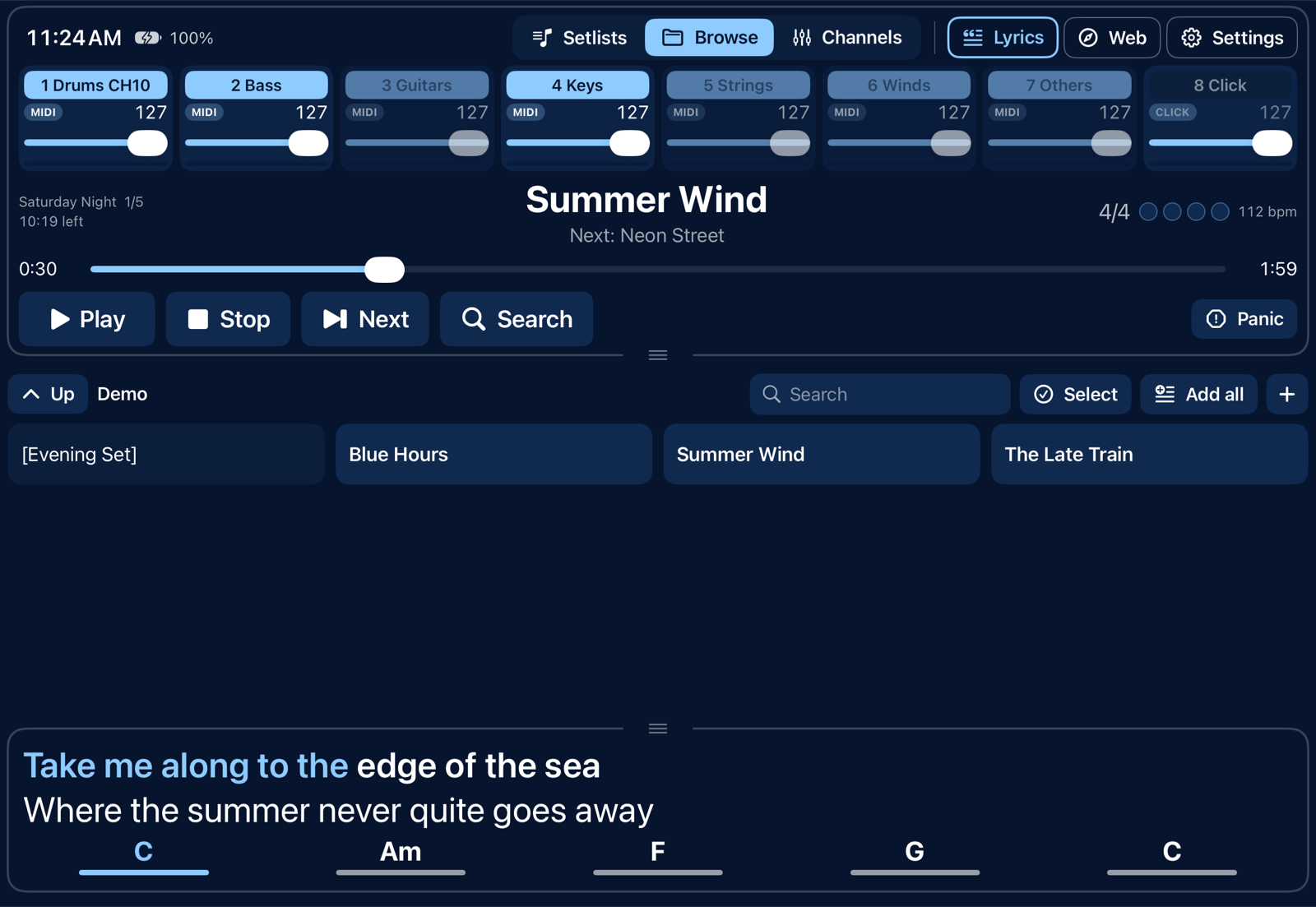
Browse in the Dark blue theme.

Browse your files where they are

Pick folders in iCloud Drive, On this iPad, a USB drive or any other provider in the Files app. Merik for iOS reads files in place, without copying them.

  • Grid of folders and songs, one to six columns, with a filter and a search through every location.
  • New folder, rename, move, delete and import. Press and hold a song to transpose it or change its volume.
  • Receive files by AirDrop or "Open in Merik".
  • Removing a location only removes the link, never the files.
Channels
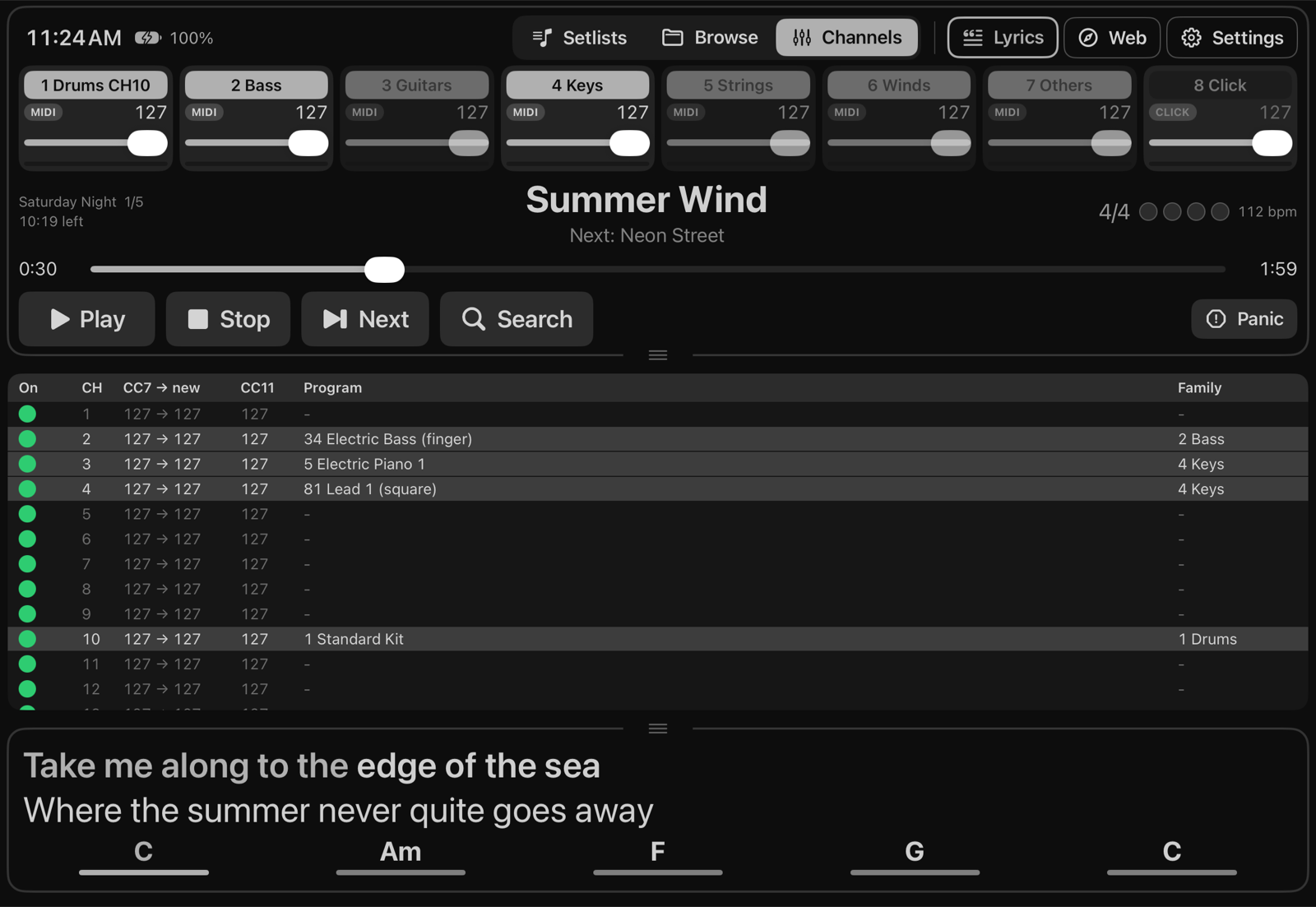
The sixteen channels in the Dark theme.

Channels, families and MIDI

The channel table shows every MIDI channel with its volume, program and family. A colored indicator shows what each channel is doing, and a blue fade shows activity.

  • Eight families with a fader, an on/off switch and a level meter.
  • Normalize songs that were mixed differently against the drum channel.
  • Transpose live: drums stay, chords follow. Volume in dB per song, remembered per song.
  • Choose the MIDI output, or a different output per family. A panic button stops hanging notes.
  • Optional click track from the tempo and time signature.
In portrait

Upright works, too

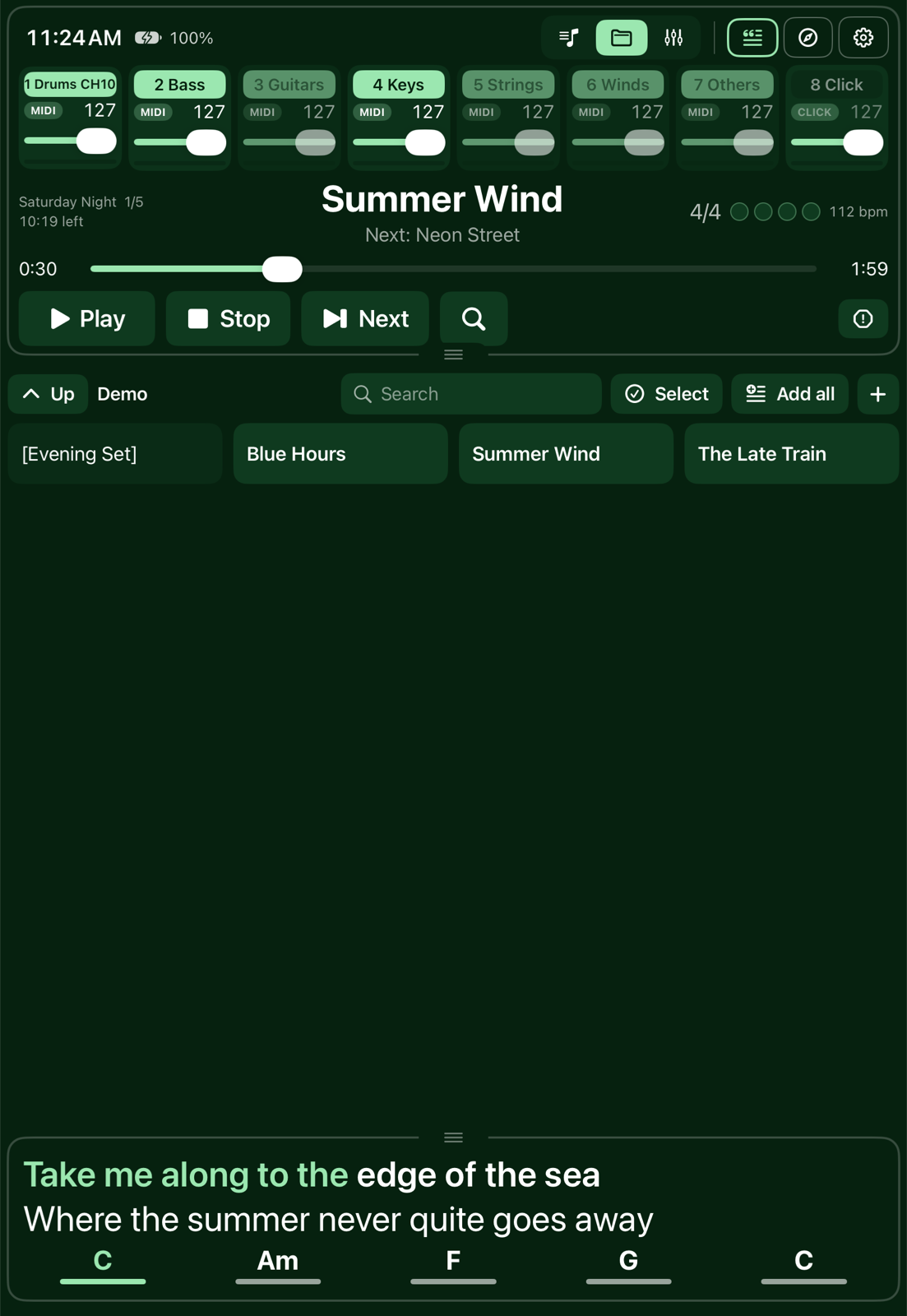
Hold the iPad upright and the same three sections stack neatly: the player, the list and the lyrics. Every layout, theme and the web page work in both orientations.

Setlist in portrait
Setlist · Gray theme
Browse in portrait
Browse · Dark green theme
Channels in portrait
Channels · Nord theme
One line layout in portrait
One line · Dark blue theme
For the band

A stage display on every device

Turn on the web page in Settings and open the address shown at the bottom of the screen on any phone, tablet or laptop on the same network. The page is view-only by default, so nobody changes anything by accident.

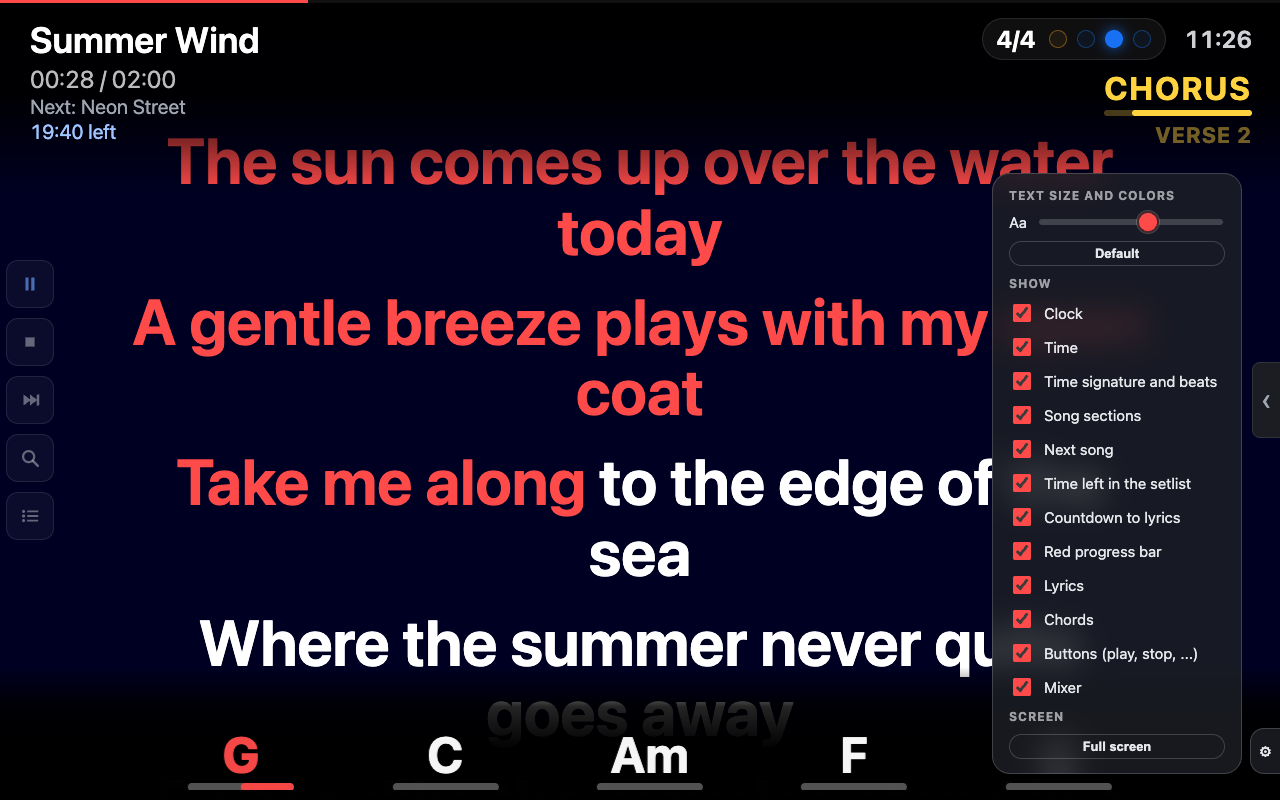
The band web page with lyrics, chords and sections, and the settings panel open
The band page on a laptop, with the settings panel open.

Lyrics, chords and sections

  • Lyrics highlighted word by word, with an adjustable size.
  • Chords along the bottom, with the next ones coming and a bar that runs out to the next chord.
  • Sections (Intro, Verse, Chorus, Solo...) read from the MIDI file, with a beat counter.
  • A yellow wait pill counts down the seconds to the next line after a long instrumental part.
  • Next song, time left in the set and a clock.
  • The gear button lets every device choose its own text size and color theme, and hide what it does not need.
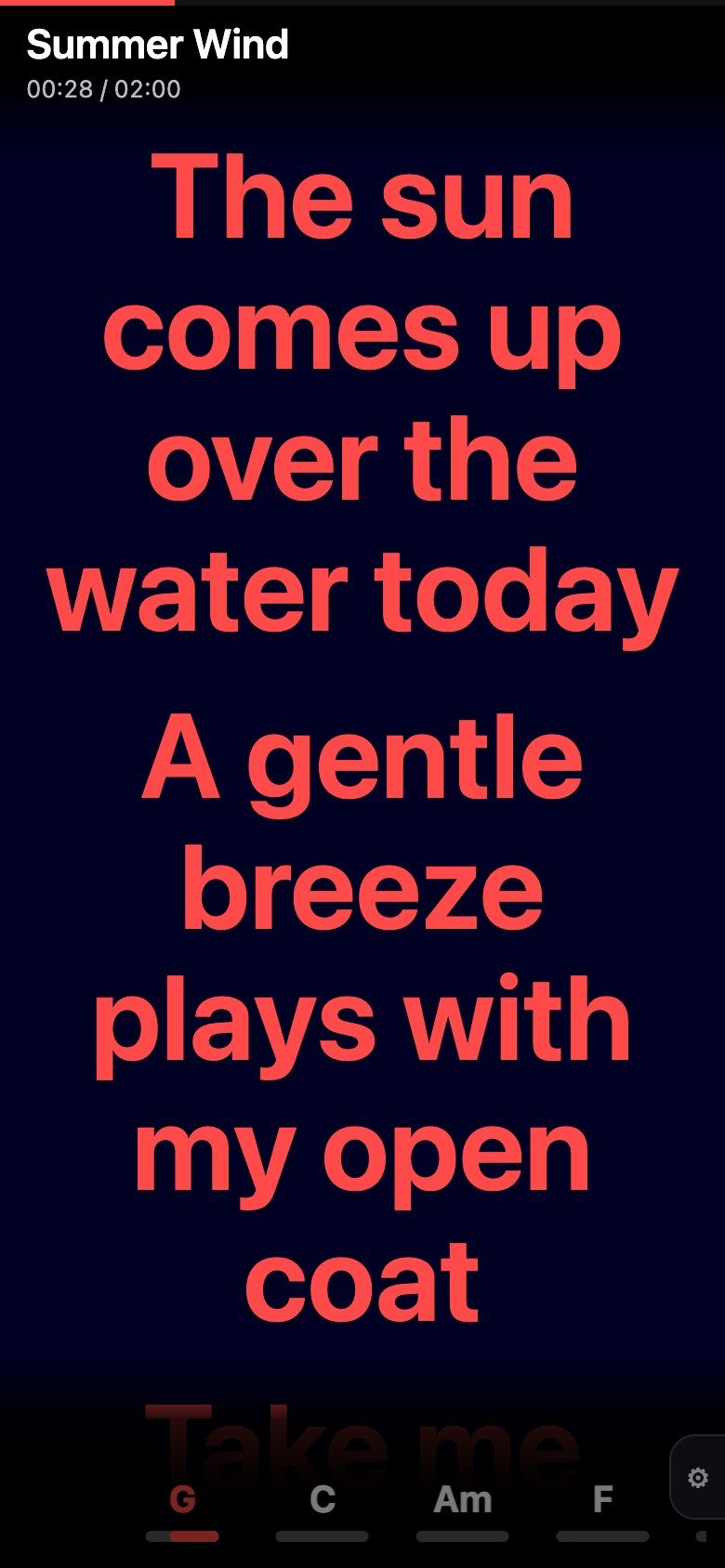
The band web page on an iPhone
The same page on an iPhone.

Works on a phone, too

The page adapts to small screens and small windows: only the title, the red progress bar, the lyrics and the chords.

Remote control

Add your key to the address and the same page becomes a remote: play, stop and next, the family mixer, a search through your setlists with Play now or Play next, and a setlist view with Jump now and Jump next. The setlist simply continues where you were.

Layout without lyrics panel
The lyrics panel hidden, in the Gray theme.

Lyrics and chords on the iPad itself

The bottom panel of the app shows the current line with the sung part lit up, the next line, the current chord and the next four, with the same countdown pill as the web page.

Ways to use it

On stage, at home, or next to the Mac version

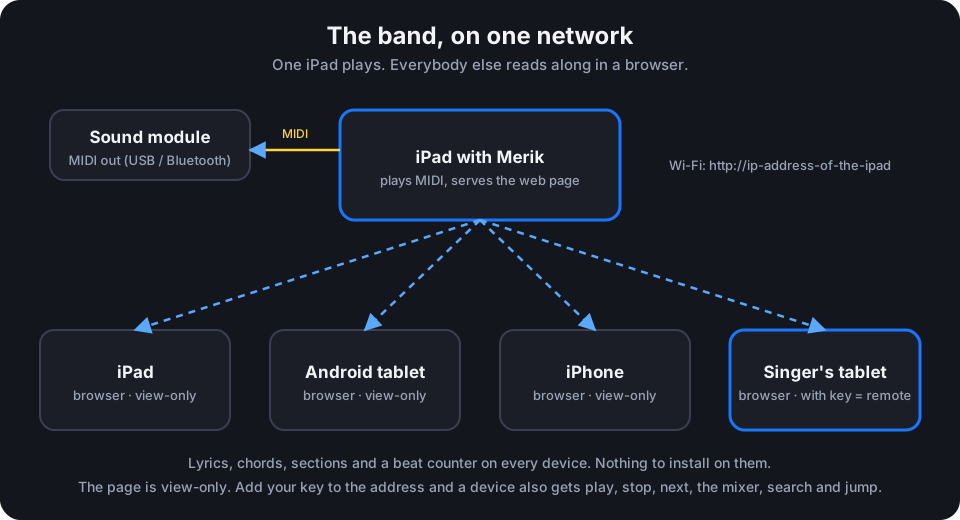
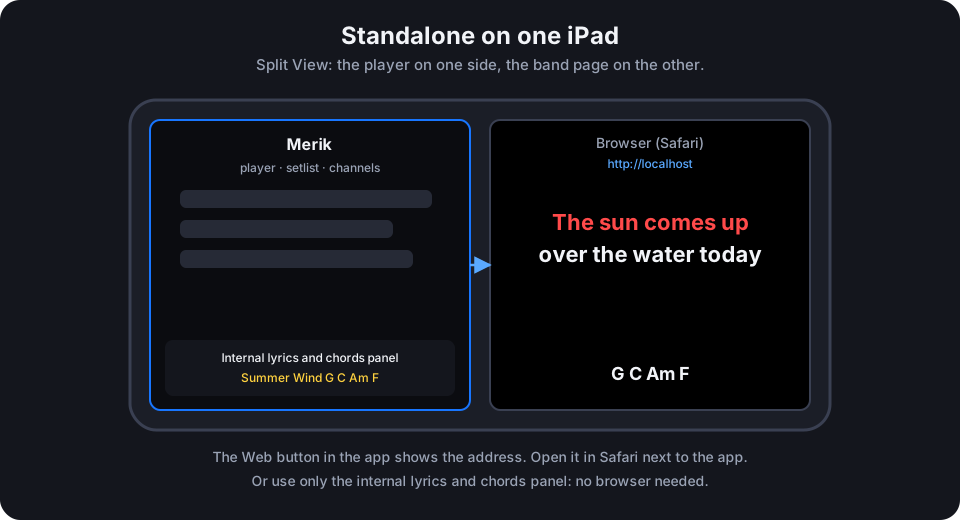
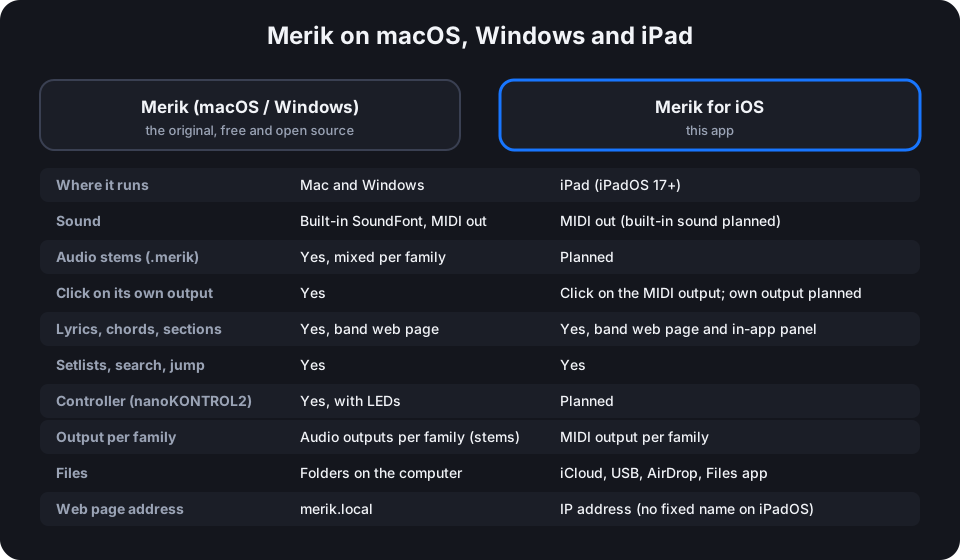
Three set-ups, from a whole band to one iPad.

Diagram: an iPad with Merik for iOS plays to a sound module; an iPad, an Android tablet, an iPhone and a singer's tablet show the lyrics and chords in a browser
The whole band. One iPad runs Merik for iOS and plays the MIDI files to your sound module. The other band members open the band page in a browser on an iPad, an Android tablet or an iPhone. The page is view-only by default. A device that opens it with the key can also control playback, the mixer and the setlist. Editing the lyrics or chords themselves is not possible: they come from the MIDI file.
Diagram: an iPad in Split View with the Merik for iOS player on the left and a browser with lyrics and chords on the right
Standalone on one iPad. Put Merik for iOS on the left and Safari on the right in Split View, with the band page at the address shown in the app. If you don't need a browser, the internal lyrics and chords panel at the bottom of the app shows the same lines, chords and countdown.
Table comparing Merik for macOS and Windows with Merik for iOS
The original Merik. Merik for iOS follows Merik for macOS and Windows, which is free and open source (Merik on GitHub). The iPad now plays the same .merik files with their audio stems and takes the same nanoKONTROL2 controller. The iPad version is native, lives in the Files app and runs without a computer. The band page is the same in both.
Themes

Six color themes

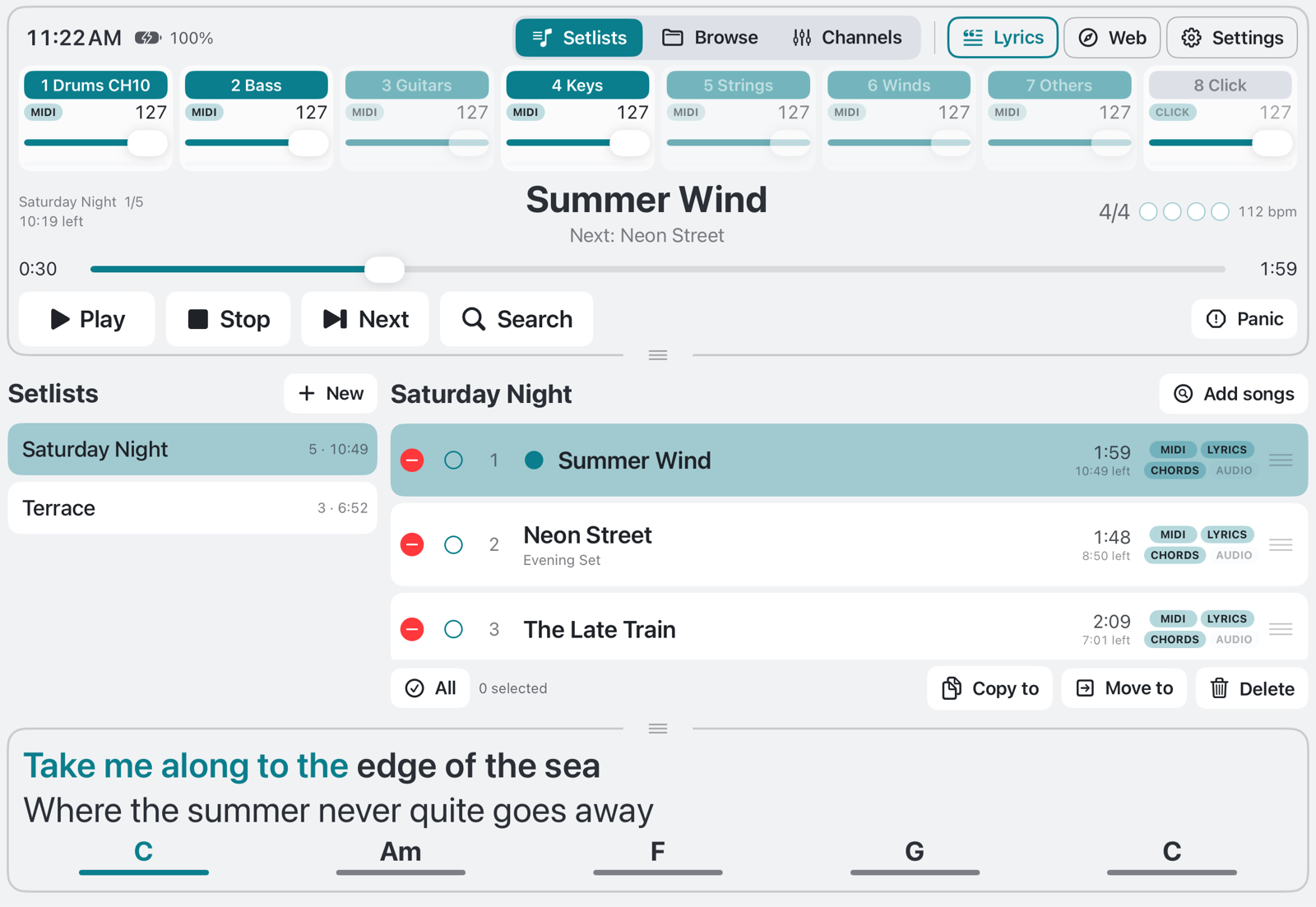
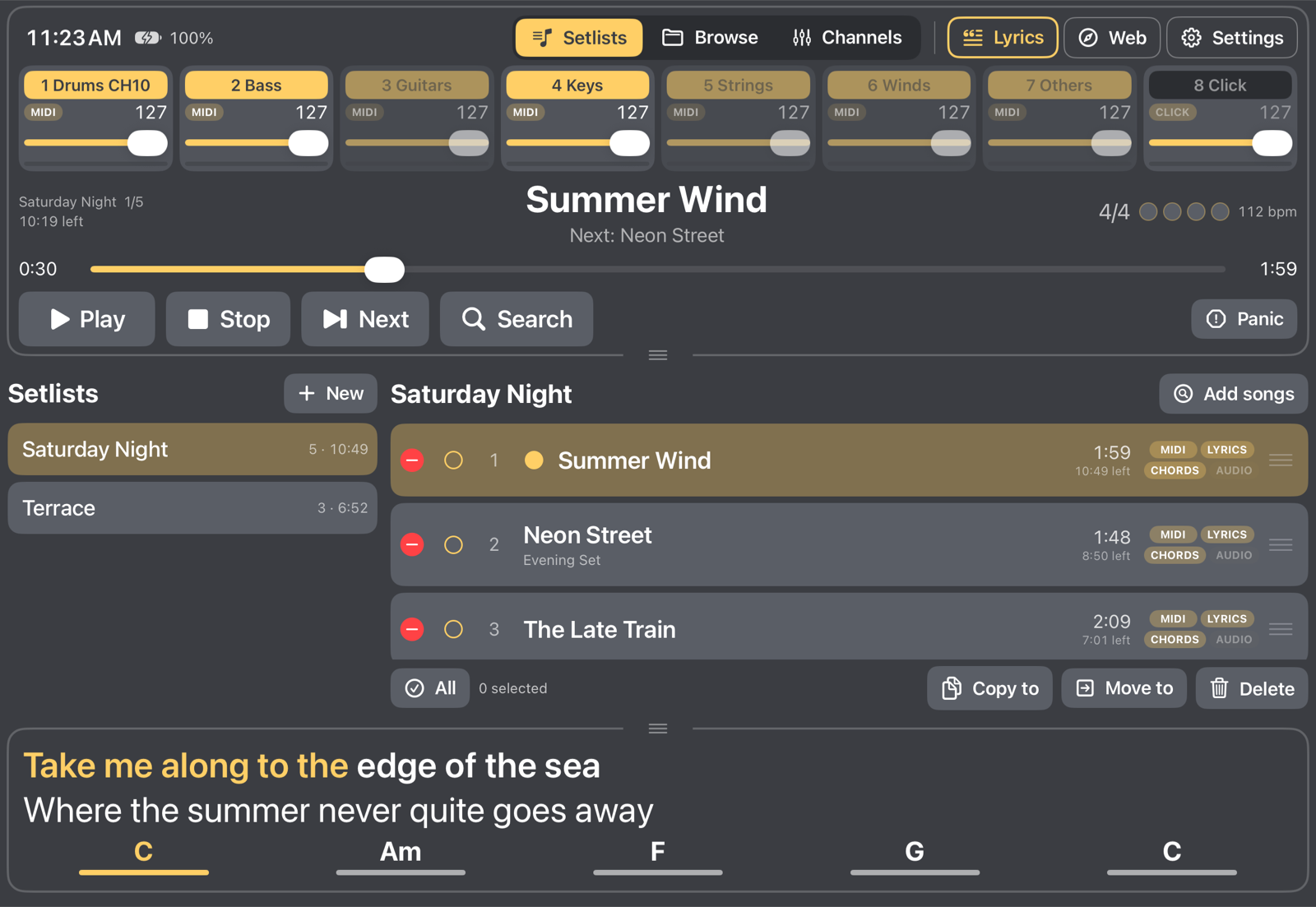
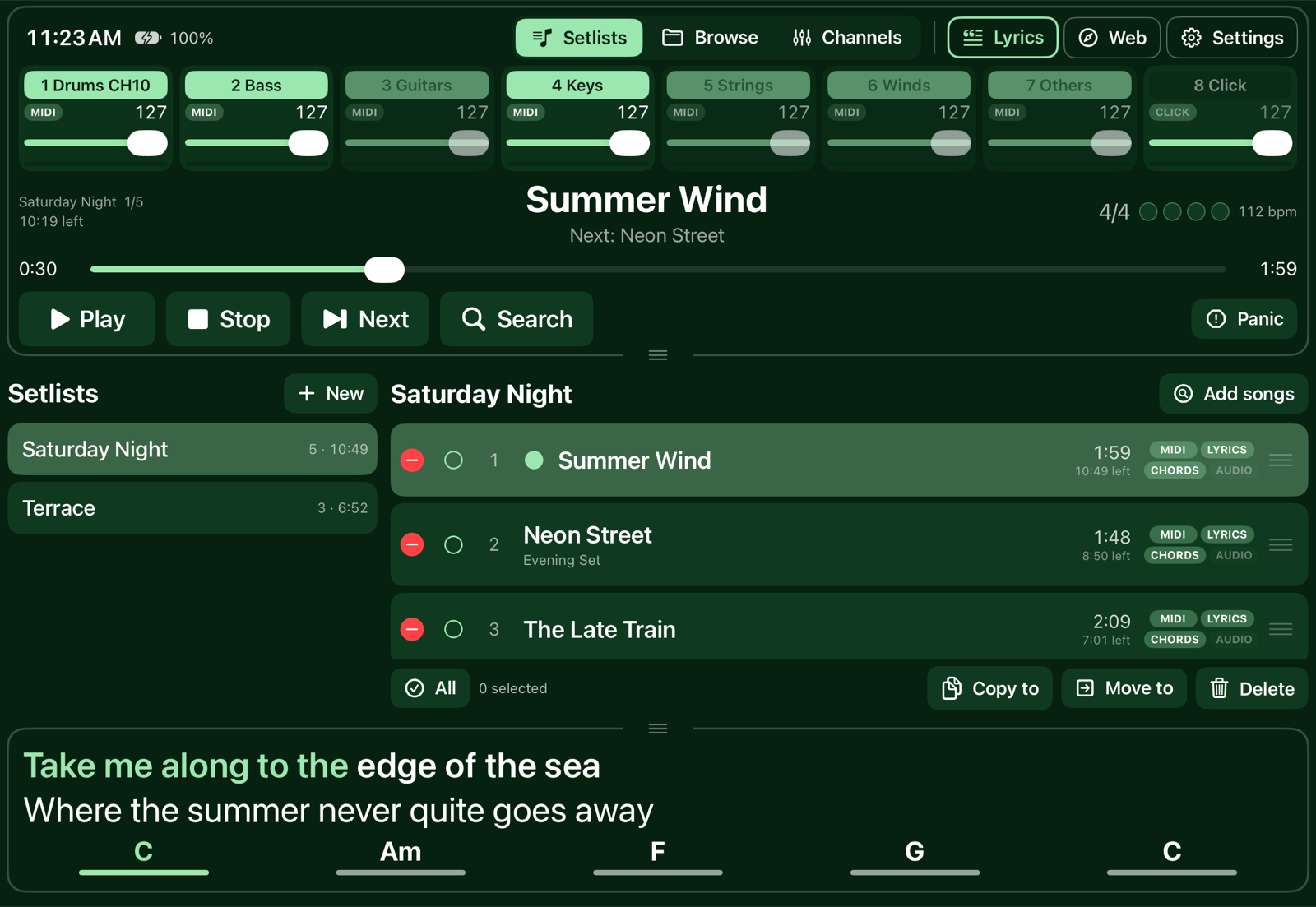
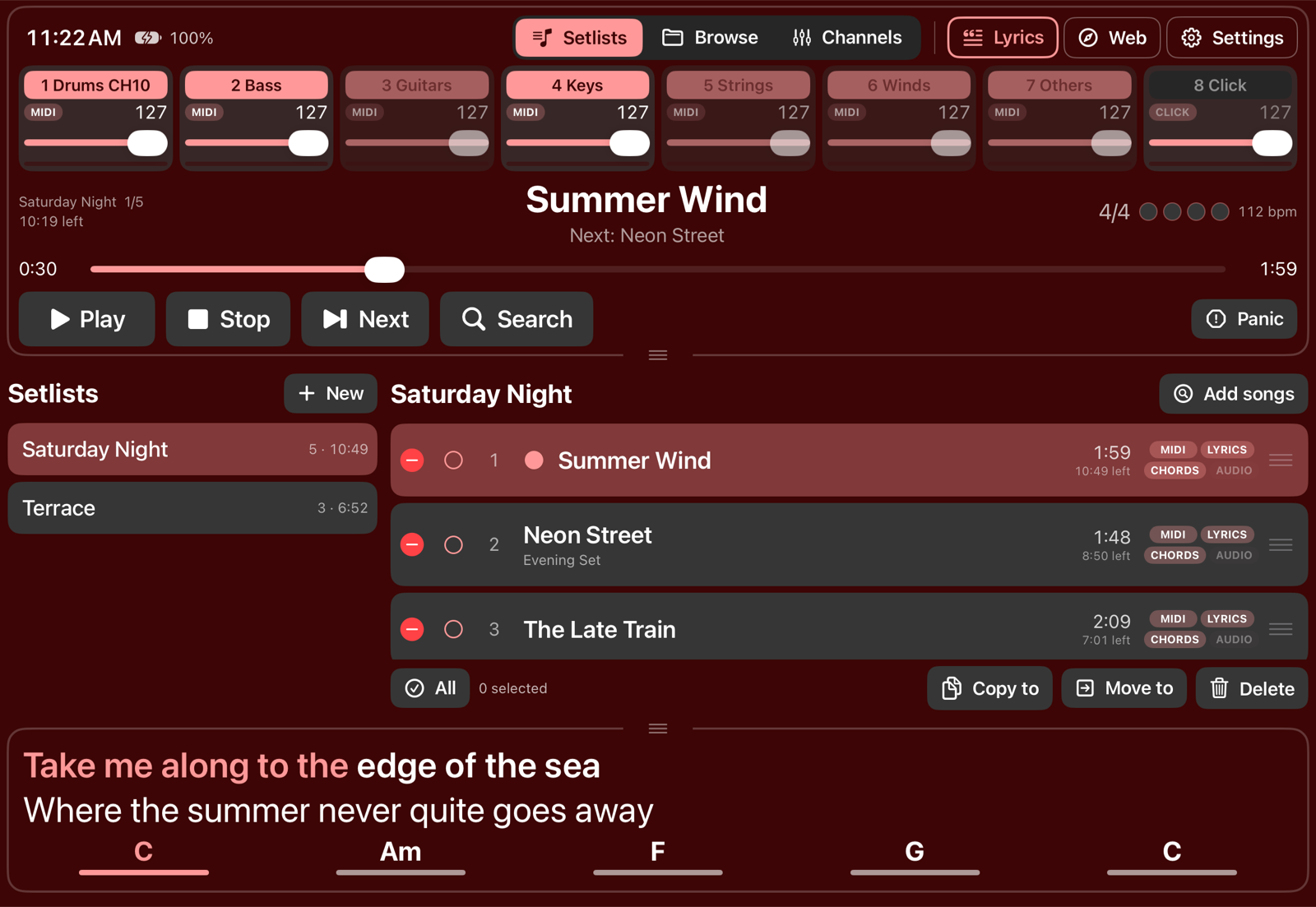
Nord, Dark, White, Gray, Dark green and Dark blue. The same screen in each of them, and the web page offers the same palettes.

Nord theme
Nord
Dark theme
Dark
White theme
White
Gray theme
Gray
Dark green theme
Dark green
Dark blue theme
Dark blue
What's next

Still on the list

Merik for iOS is a young app, and these are the open items. Missing something? Request a feature or join the beta.

Idea

Setlists over iCloud

Your setlists on all your iPads through iCloud, and an instant backup of them while you are at it.

Planned

Keyboard shortcuts

Play, stop and next from an iPad keyboard.

Planned

iPhone

A narrower layout of the player and the families for the iPhone.

Getting started

From MIDI file to stage in minutes

Availability: coming soon. Four steps from MIDI file to stage.

Beta testers wanted

Test it before release, and help shape it

Merik for iOS is looking for bands and keyboard players who want to try it on real gigs. Beta testers get early builds and a direct line to the developer: tell us what you miss and help decide which features come next.

Or mail erik.nouveaupays@gmail.com directly.

Pick a place for your songs

In Browse, choose a folder in iCloud Drive, On this iPad or on a USB drive. Or put files in the Merik folder in the Files app, or send them with AirDrop.

Choose the MIDI output

In Settings, MIDI output, pick your sound module (over a USB-MIDI interface), a Bluetooth device or an app on the iPad. Without a choice, everything goes to all outputs.

Build a setlist

Add songs from Browse, set transpose and volume with a long press, and press a song to play. Next goes to the following song.

Open the band page

Turn on the web page in Settings. Open the address at the bottom of the screen on the band's phones and tablets.

Good to know

The address of the band page

Use the address shown at the bottom of the screen and in Settings. iPadOS does not let an app choose its own host name, so a short name such as merik.local is not possible; the iPad's own name followed by .local usually works too.

Playing with a locked screen

Merik for iOS plays a silent sound in the background, so playback continues when the screen locks or you switch to another app.

Your files stay yours

No cloud and no account. Setlists are one small JSON file in the Merik folder, so they show up in Files and in Finder.

Get a SoundFont

For the sound on the iPad, Merik for iOS needs a free SoundFont (.sf2). Our favourite is Matrix SoundFont (about 1 GB, CC BY-SA); smaller is GeneralUser GS by S. Christian Collins (about 30 MB). Download it on the iPad, then Settings › Sound (Easy) or Settings › SoundFont (Advanced) and choose the file.

Language

The app speaks Dutch and English. It follows the language of your iPad.